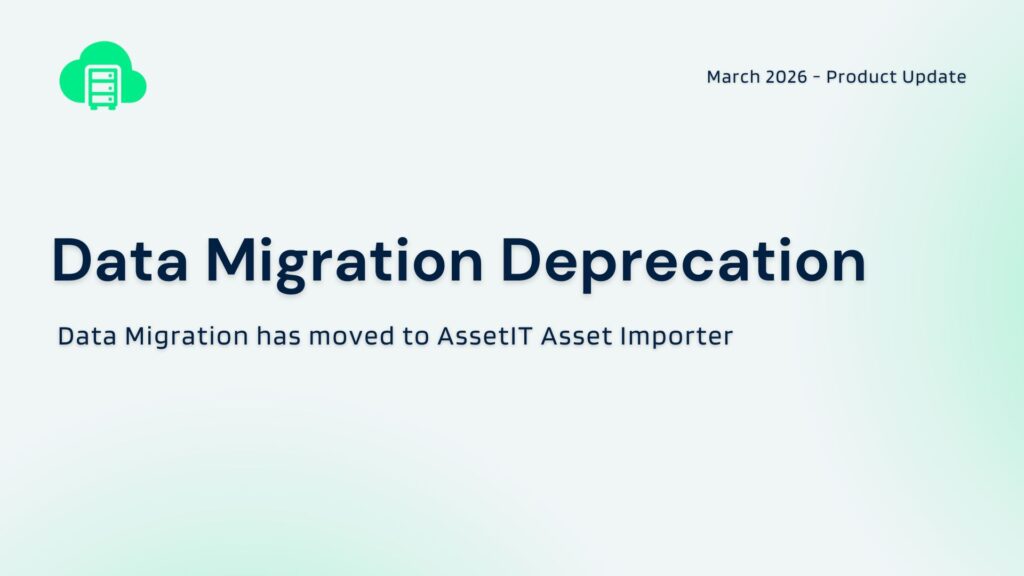
Starting in March 2026, AssetIT will no longer support the Data Migration feature inside the AssetIT app.
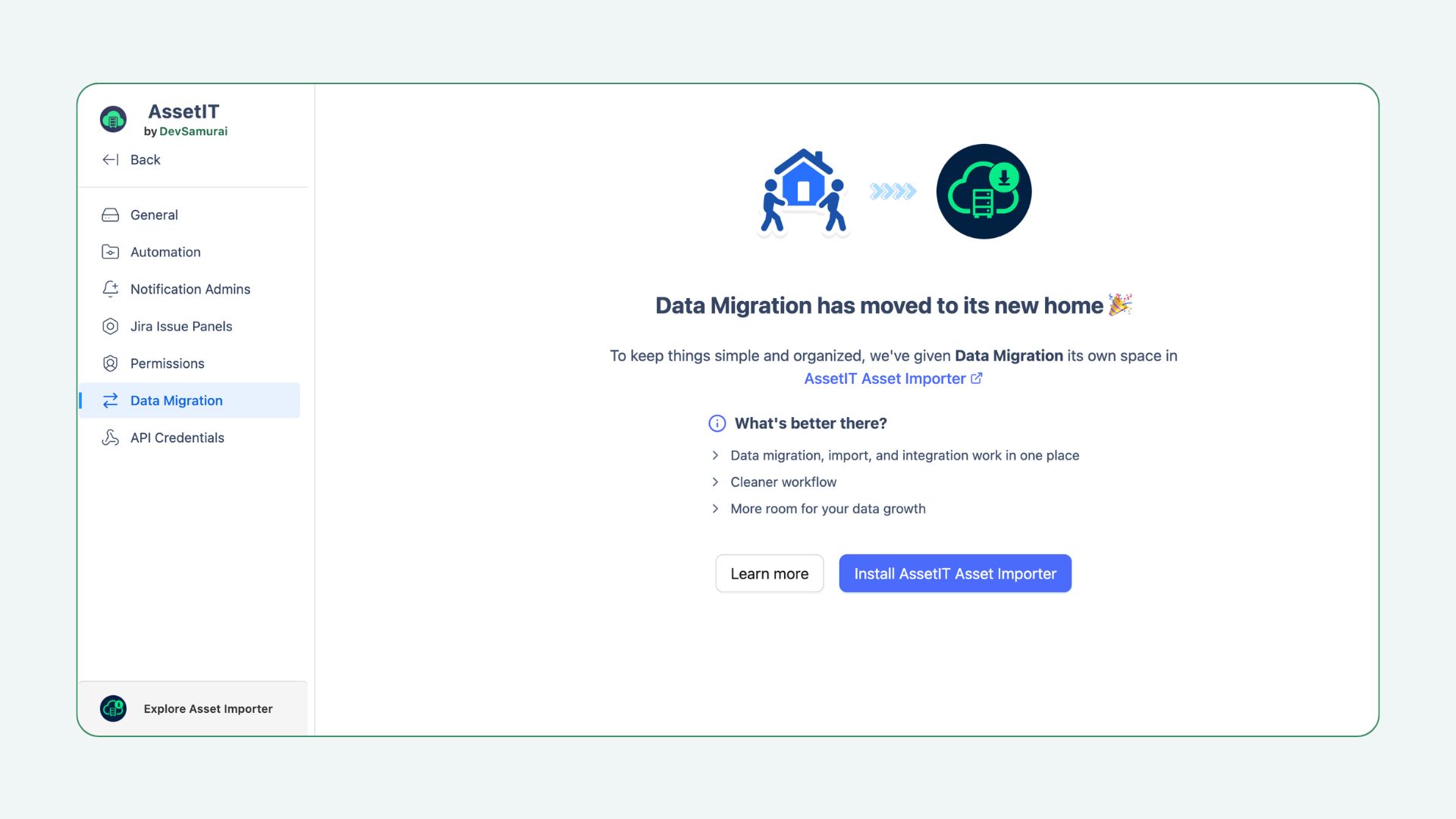
To keep things simple and organized, Data Migration will have a new home in AssetIT Asset Importer – a dedicated app designed to handle data import, migration, and integrations with external systems.
What does this mean for existing users?
Data migration, import, and integration tasks will now be handled in AssetIT Asset Importer
The Data Migration feature inside AssetIT will be retired starting in March
AssetIT will remain focused on managing, tracking, and working with your assets day to day
If you’re currently using Data Migration in AssetIT, simply install the AssetIT Asset Importer to continue your data-related workflows.
Why are we making this change?
As AssetIT continues to grow, data migration and integration have become more than just one-time setup tasks. Many teams now connect AssetIT with multiple external platforms and manage data imports on an ongoing basis.
By moving these capabilities to AssetIT Asset Importer, we’re bringing everything related to data movement into one centralized place. This makes it easier to manage imports, migrations, and integrations without switching between tools, while keeping AssetIT focused on day-to-day asset management.
What is AssetIT Asset Importer?
AssetIT Asset Importer is a dedicated app on the Atlassian Marketplace that serves as the central hub for all data movement into AssetIT.
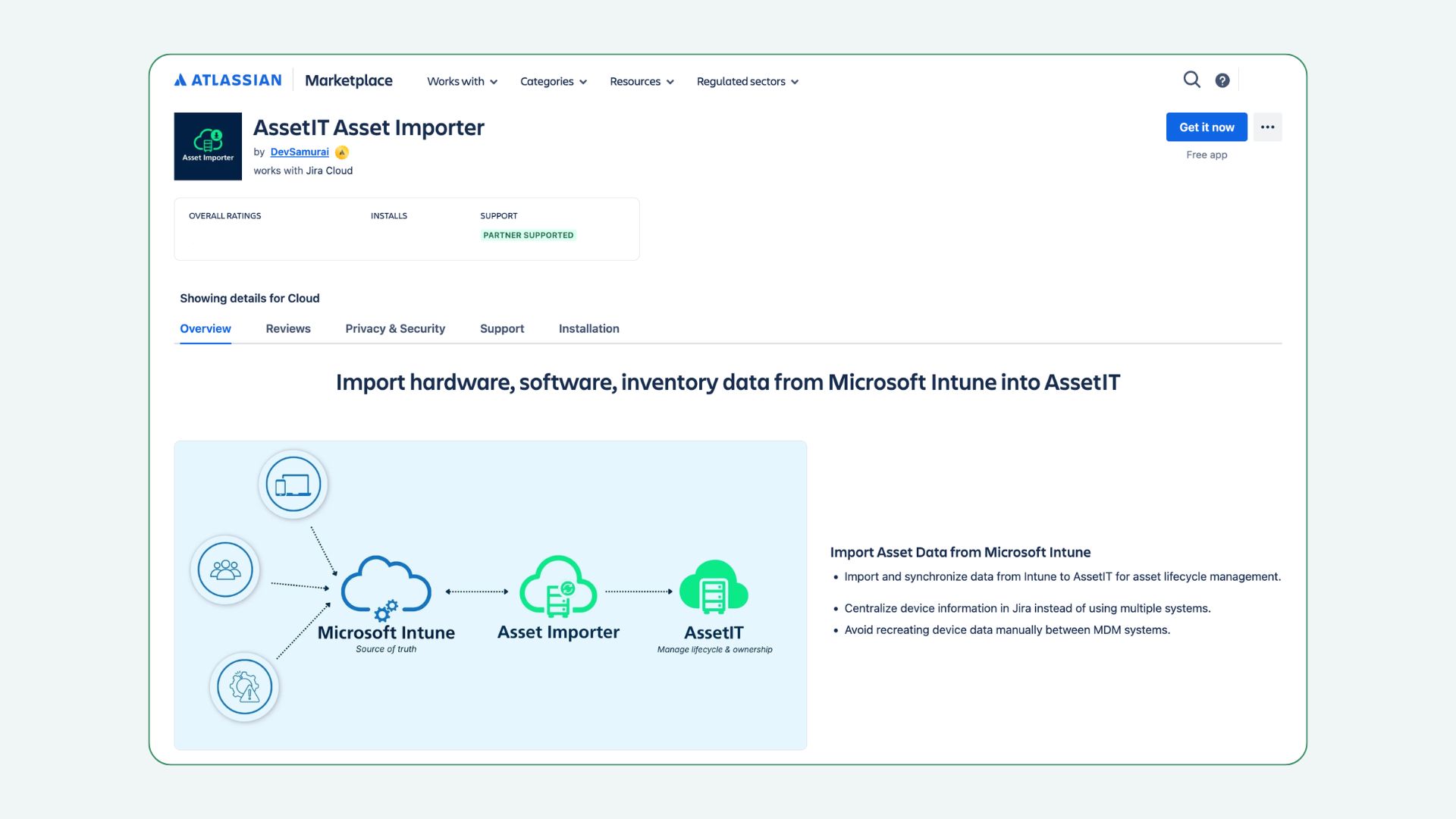
AssetIT Asset Importer helps you bring asset data from external systems into AssetIT. By using system-sourced information, it reduces manual data entry and keeps asset records accurate and reliable.
At launch, it supports integrations with Microsoft Intune and JAMF, allowing you to connect AssetIT with these external systems and import asset data with ease. More integrations are coming shortly as we continue to expand AssetIT Asset Importer.
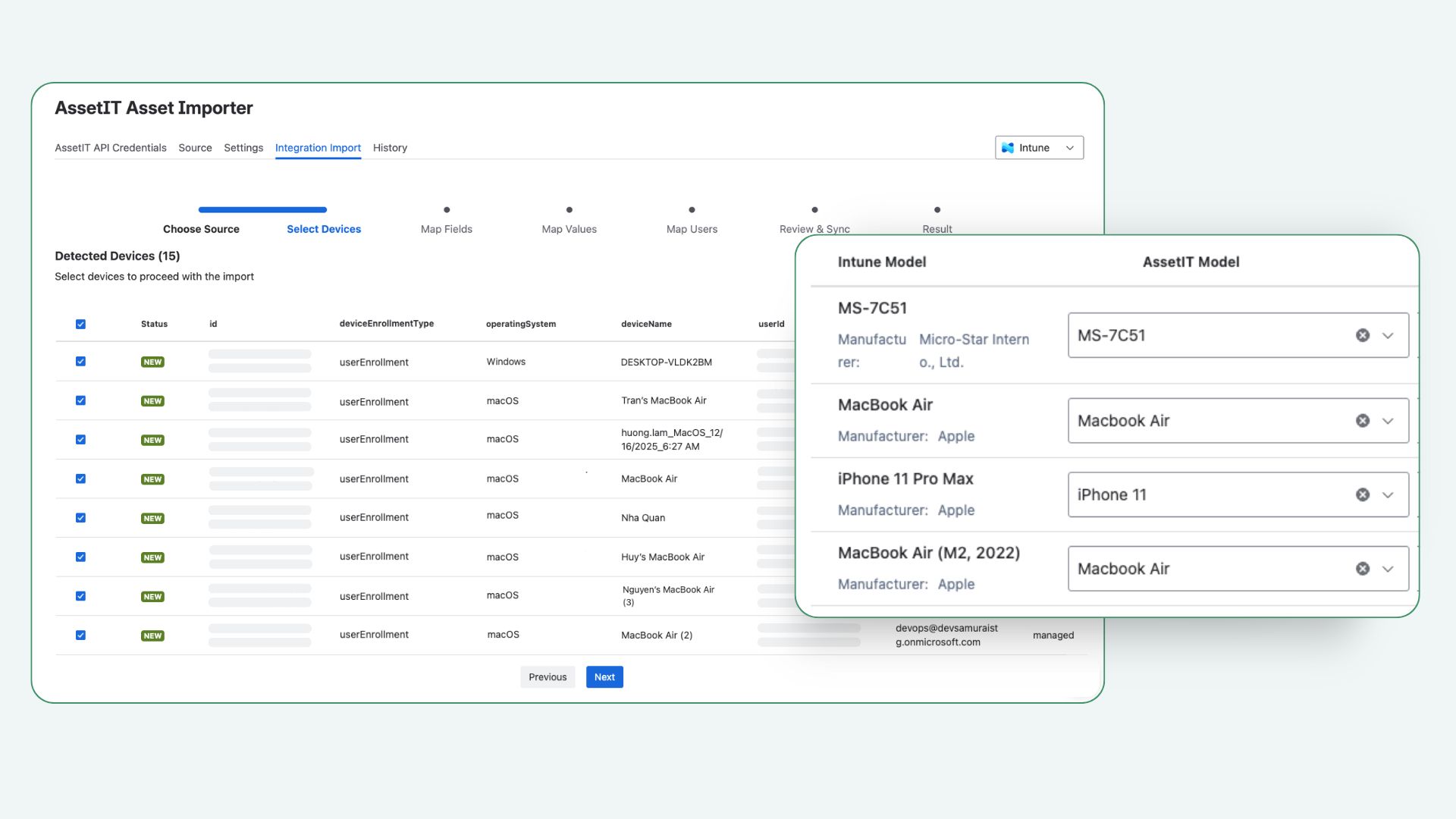
Get started with AssetIT Asset Importer
To install AssetIT Asset Importer:
Open your browser and navigate to the Atlassian Marketplace.
In the search bar, type “AssetIT Asset Importer” and hit enter. Alternatively, you can access this link.
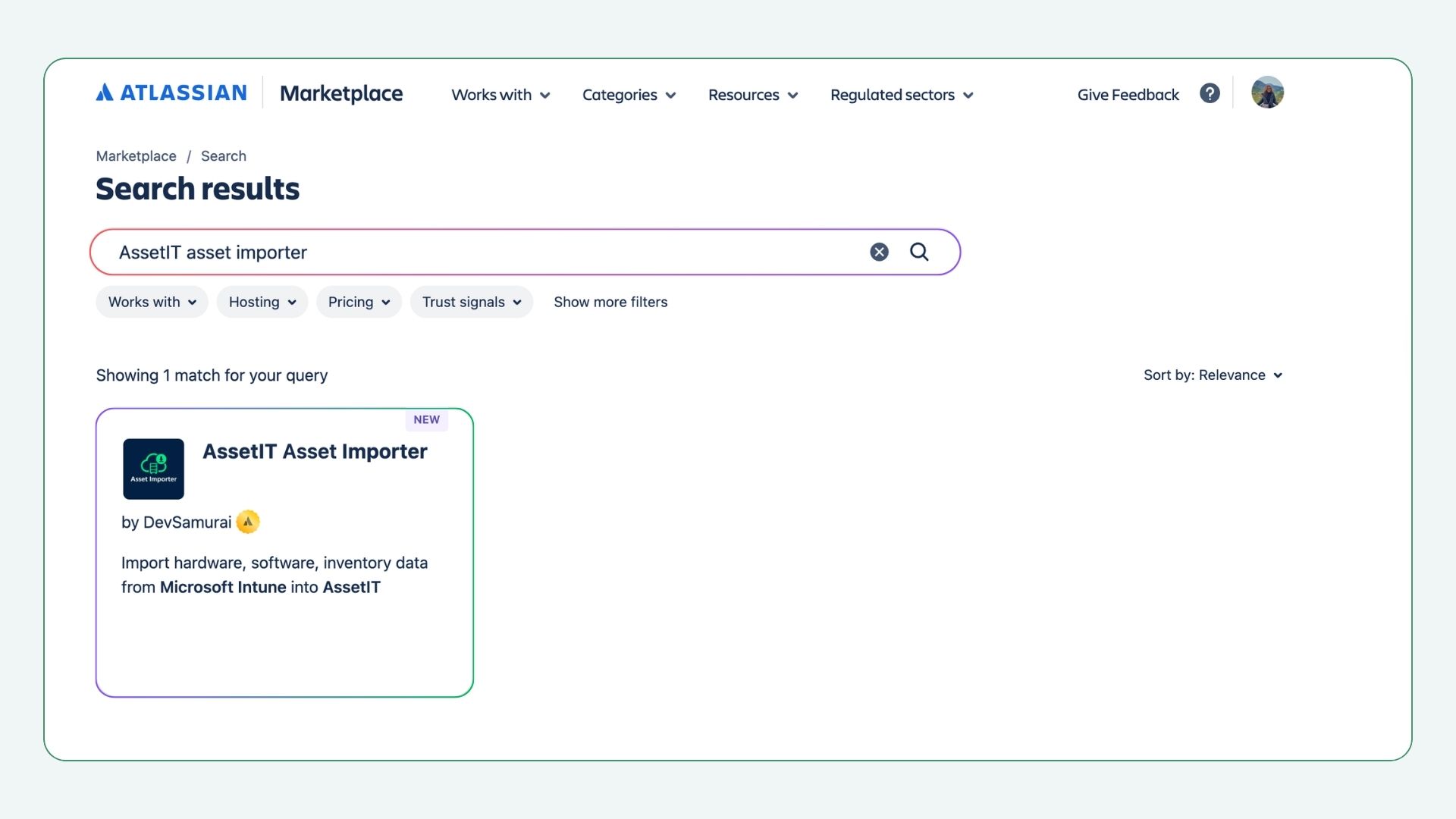
Once you are on the AssetIT Asset Importer listing page, simply click “Try It Free” to start installing your app. Don’t forget to select the instance that you would like the app to be on, and you’re all set!
Learn more about data connection and configuration at: AssetIT Asset Importer Step-by-Step Guide ->
We’d love to hear from you!
If there’s an integration you’d like to see next, you can share your requirements and vote for upcoming integrations through our Idea Portal. Your feedback helps us prioritize what to build and improve next.
If you have any questions or need help getting started, our support team is always happy to help at AssetIT Support Desk ->


Recent Comments